App blocking
Put scrolling to bed.
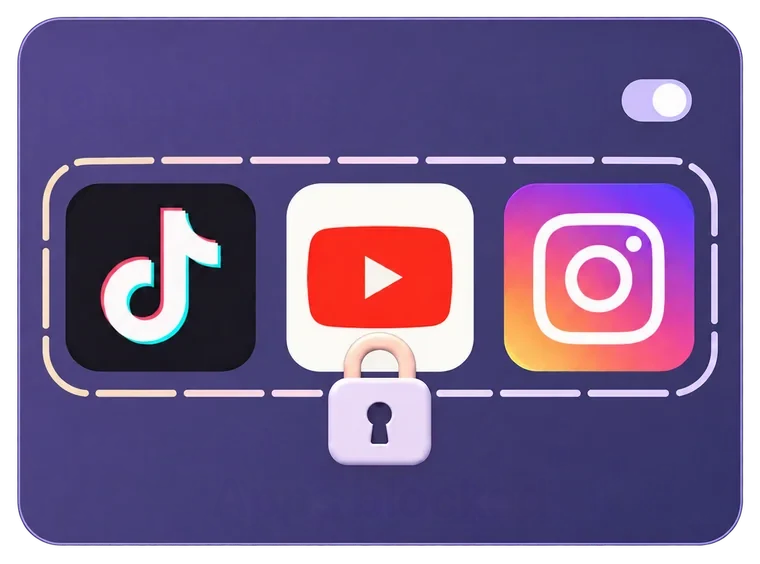
Quiet Hours blocks the apps and websites you choose, at the times you choose: while you wind down at night, in the morning after your alarm, or while you work.
 Download on theApp Store
Try for Free
Updated
What you get
-
Block apps and websites
Pick single apps, whole categories like social media, or websites.
-
On your schedule
Set the hours and the days, for bedtime, mornings or work.
-
Breaks when you need one
Open a blocked app for a few minutes, and blocking comes back on its own.
How it works
How do you block apps at night on iPhone?
Open Quiet Hours in Wonderwake, choose a schedule and pick what to block. When the time comes, those apps open to a calm Wonderwake screen instead of your feed.
- Choose a schedule. Wind-Down, Morning or Work.
- Pick what to block. Apps, categories like social media or games, and websites.
- Set the time and days. For example 22:30 to 7:30, every day.
- Put the phone down. The rest happens on its own, every day you picked.
Three schedules
Quiet when it matters.
Use one, two or all three. Each keeps its own list of apps.
-
Wind-Down
Before bed
Close endless feeds in the hour before sleep, so it’s easier to put the phone down and drift off.
-

Morning
After your alarm
Start the day before the scroll does. News and feeds can wait until you’re up and moving.
-

Work
While you focus
Keep distracting apps out of reach during the hours you want to get things done.
Taking a break
What if you really need an app?
Life happens. From the blocked screen, open Wonderwake and take a short break, from 5 minutes up to 2 hours. When the break ends, blocking comes back by itself.
You can also pause a schedule whenever you like. Your apps, times and days are saved, so turning it back on takes one tap.
Gentle reminders
Not ready to block something completely?
Add it to Distracting instead. You can still open it, and Wonderwake sends a gentle reminder once you’ve spent 1, 5 or 15 minutes in it, whichever you choose.
It’s a softer way to notice the scroll before it takes the whole evening.
Your alarm comes first
Will it block my alarm or calls?
No. Quiet Hours never touches your alarm. Your gentle alarm, the stronger alarm and your iPhone’s own backup alarm work exactly the same during any schedule. See how alarm backup works.
Only the apps and websites you pick are blocked. Everything else works as usual.
Your choices and how you use your apps stay on your iPhone and are never uploaded.
Questions
App blocking FAQ
How do I block apps at night on iPhone?
Set up Quiet Hours in Wonderwake with the Wind-Down schedule. Choose the apps or websites to block and when it starts, and they stay blocked until it ends.
Can I block apps in the morning after my alarm?
Yes. The Morning schedule keeps the apps you choose closed for the time you set, so your day doesn’t start with a feed.
Can I block websites too?
Yes. You can block single apps, whole app categories and websites.
Can I still open a blocked app if I need to?
Yes. From the blocked screen, open Wonderwake and take a short break of 5 minutes to 2 hours. Blocking comes back on its own.
Will Quiet Hours affect my alarm?
No. Your alarm always works, with or without Quiet Hours.
Can Wonderwake see which apps I use?
No. Your choices and how you use your apps stay on your iPhone and are never uploaded.








For everyday routines and general wellness only. Sleep times, stages, scores and recommendations are estimates, not medical advice, diagnosis or treatment. Wonderwake does not detect sleep disorders or guarantee sleep results. Ask a qualified professional about persistent sleep concerns.